


StrategyBlocks Feature Focus: Track Delivery Activity by Owner
Sharper filters for faster answers
A status report can tell you what’s true right now. It can’t tell you what’s gone quiet.
A Block sitting at 60% complete looks the same whether it got there through three weeks of steady delivery or three weeks of nobody touching it. And a portfolio view showing “12 Blocks behind target” doesn’t tell you who’s accountable for fixing it, or whether it’s one manager carrying most of the risk or twelve different owners each carrying a little.
This month’s update fixes these gaps. We’ve added a new date filter that surfaces delivery activity instead of just delivery dates, and two new counting variables that let you slice your portfolio by the people responsible for it, not just its status.
Filter by when a Block was actually updated
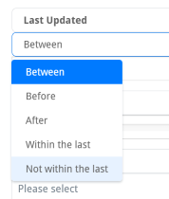 Until now, StrategyBlocks’ date filters worked off the dates that frame a Block of strategic activity, its start date, its end date, or both, filtered against a date range you set. Useful for understanding what’s scheduled when. Less useful for understanding what’s moving.
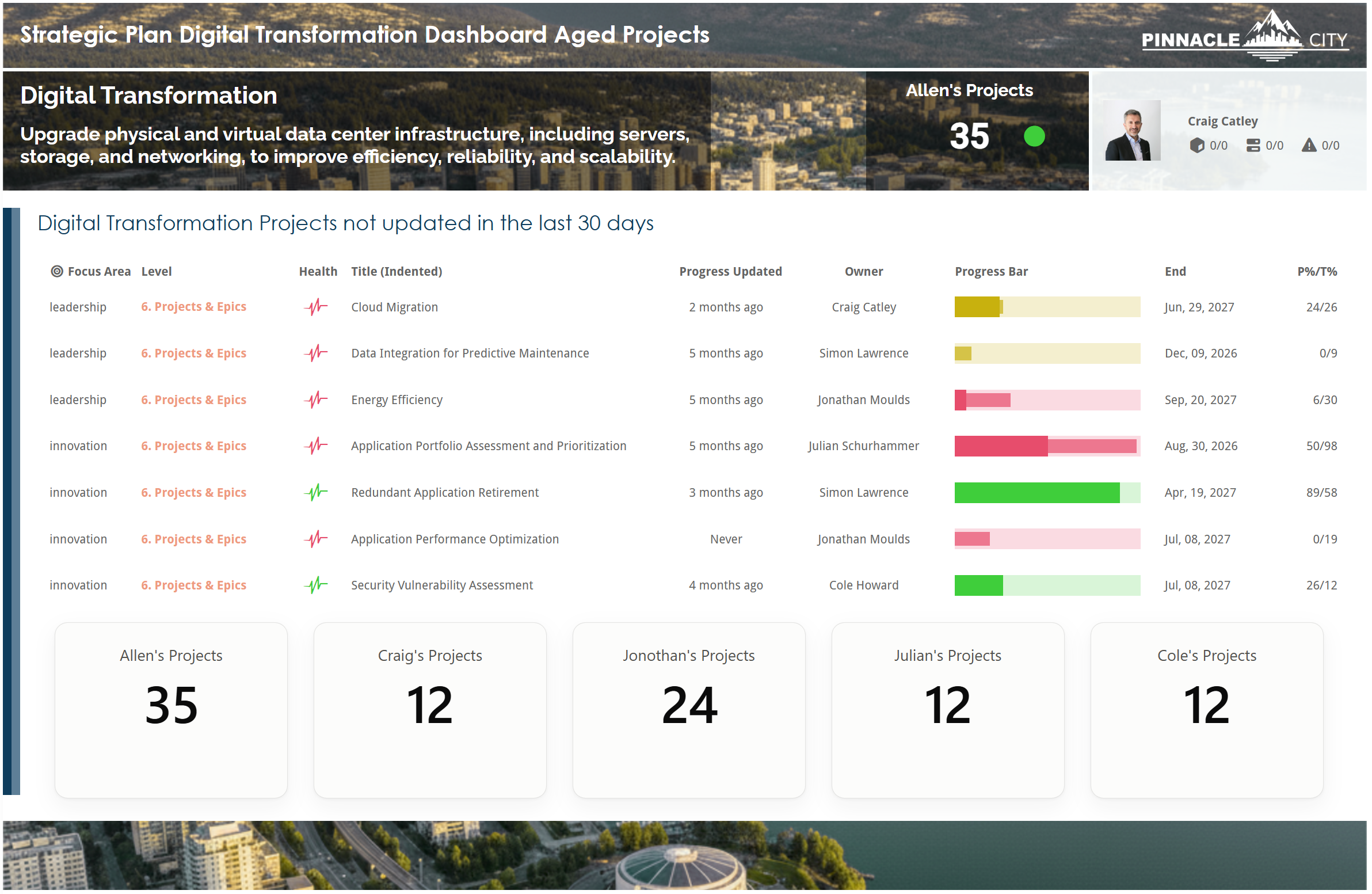
We’ve added a filter for that: you can now filter Blocks by when they were last updated, that is, when their delivery progress last changed (between, before, after, within, or not within date). In practice, this means you can finally ask the question every portfolio owner has wanted a fast answer to: show me every Block that has, or hasn’t, been updated in the last 30 days.
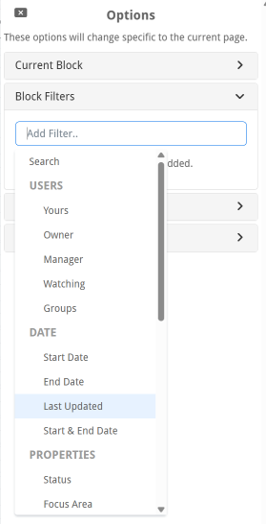 That single filter reframes a portfolio review, the same way our block count metrics gave leaders a sharper read on enterprise delivery last year. Blocks that haven’t been touched in 30 days aren’t necessarily red, but they’re worth a conversation. Is the work paused, blocked, or is nobody reporting it? Blocks that have been updated frequently show you where the operational energy in your organization actually is. Neither of those signals was visible from a completion percentage or a due date alone.
Like every filter in StrategyBlocks, this one doesn’t work in isolation. Combine “updated in the last 30 days” with status, level, or ownership filters and you get a genuinely refined view, for example, every Block that’s behind target and hasn’t been updated in a month, which is a useful list for a regular check-in.
Count Blocks by Owner and Manager
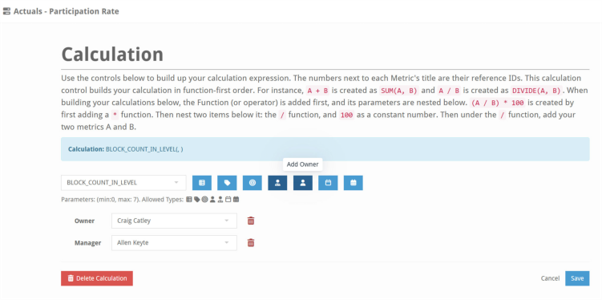
The second addition is about accountability, not just activity. We’ve introduced two new variables for counting Blocks: by Owner and by Manager.
This sounds small. In practice, it answers a question that previously took a manual export and a pivot table: how many Blocks within a given level (or all levels), say, all Projects, are managed by a specific Manager and currently sitting at a specific status?
Put that together and you get something like: how many Blocks within Projects managed by Craig are behind target? One question, one answer, no spreadsheet gymnastics. And because it’s a counting variable rather than a one-off report, it drops straight into dashboards and views you already use, so accountability by role becomes a standing part of how your portfolio is reported, not a special request.
Better questions, not just more data
For leadership teams, this closes a real gap. Status tells you what’s happening. Ownership by role tells you who to talk to about it. Put next to each other, they turn a portfolio dashboard from a scoreboard into a management tool.
Neither of these features adds new information to StrategyBlocks so much as it adds a new lens on information that was already there. The Updated Date filter turns your existing delivery data into a signal for engagement, not just progress. Owner and Manager counts turn your existing ownership data into a way of holding the right conversation with the right person.
Together, they mean your filtered views can now answer questions like “what’s stalled, and whose is it?” in a single pass, rather than requiring you to cross-reference two or three separate reports to get there.
Log in to try the new Updated Date filter and the Owner/Manager counting variables in your existing dashboards and views. If you’d like a walkthrough of how they fit into your team’s reporting cadence, book a demo with us.
Leave A Comment